
BIZHUB C10P - Color printer KONICA MINOLTA - Free user manual and instructions
Find the device manual for free BIZHUB C10P KONICA MINOLTA in PDF.


| Product Type | Color Printer |
| Brand | KONICA MINOLTA |
| Model | BIZHUB C10P |
| Provided Software | PageScope Direct Print Ver. 1.1 |
| Compatible Operating Systems | Windows Me, Windows 2000 Professional (SP4 or later), Windows XP Home Edition/Professional (SP1 or later) |
| Supported File Formats | PDF, TIFF, PS, PCL, ASCII (Text) |
| Network Connectivity | Ethernet (connection required) |
| Printing Methods | Drag and drop on icon, right-click (context menu), main window, monitored folders (Hot Folders) |
| Number of Registrable Printers | Multiple (unlimited) |
| Job Settings | Customizable: paper tray, paper type, stapling, punching, number of copies, etc. |
| Security Features | User authentication, account tracking, enhanced security, administrator/general rights |
| Print Management | Print status, print log, recovery of sent data |
| Monitored Folders (Hot Folders) | Automatic monitoring, network sharing, adjustable interval |
| Power Supply | 220-240 V AC, 50/60 Hz (estimated) |
| Dimensions (W x D x H) | Approximately 420 x 480 x 380 mm (estimated) |
| Weight | Approximately 15 kg (estimated) |
Frequently Asked Questions - BIZHUB C10P KONICA MINOLTA
User questions about BIZHUB C10P KONICA MINOLTA
0 question about this device. Answer the ones you know or ask your own.
Ask a new question about this device
Download the instructions for your Color printer in PDF format for free! Find your manual BIZHUB C10P - KONICA MINOLTA and take your electronic device back in hand. On this page are published all the documents necessary for the use of your device. BIZHUB C10P by KONICA MINOLTA.
USER MANUAL BIZHUB C10P KONICA MINOLTA
Direct Print Ver. 1.1
User's Guide

PAGESCOPE
Direct Print
Contents
1 Introduction
1.1 System Requirements 1-1
1.2 Main Features 1-2
1.3 Copyright Information 1-4
2 Installing PageScope Direct Print
2.1 Installing 2-1
2.2 Uninstalling 2-7
3 Starting PageScope Direct Print
3.1 Using the "Start" Menu 3-1
3.2 Using the Application Icon on the Desktop 3-1
3.3 Main Window 3-2
4 Specifying Printer Settings
4.1 Adding a Printer 4-1
4.1.1 "Network" tab 4-3
4.1.2 "Authentication/Account Track" tab 4-4
4.1.3 "Option" tab.. 4-6
4.1.4 Specifying printer search parameters 4-8
4.2 Changing Printer Settings 4-9
4.3 Deleting a Printer 4-9
5 Programming Job Settings
5.1 Adding a Job Setting 5-1
5.2 Changing a Job Setting 5-3
5.3 Deleting a Job Setting 5-4
6 Printing
6.1 Using the Appropriate Icon on the Desktop 6-1
6.2 Using the Shortcut Menu (Displayed by Right-Clicking) 6-3
6.3 Specifying a File From the Main Window 6-5
6.4 Using Hot Folders 6-6
6.4.1 Setting up hot folders 6-6
6.4.2 Specifying detailed hot folder settings 6-9
6.4.3 Hot folders monitoring icon 6-10
6.4.4 Printing using a hot folder 6-11
7 Security Functions
7.1 Common to Administrators and General Users 7-1
7.2 Administrators 7-1
7.3 General Users 7-2
8 Additional Settings
8.1 Edit Job Setting for each printing 8-1
8.2 Edit Authentication/Account Track for each printing 8-3
9 Checking the Printing Status and Print Log
9.1 Checking the Printing Status 9-1
9.2 Viewing the Print Log 9-3
9.2.1 Specifying the log setting 9-4
9.2.2 Retrieving data 9-5
10 Warning/Error Messages
10.1 Messages Concerning PDF Versions 10-1
1 Introduction
PageScope Direct Print is an application for sending files such as PDF and TIFF files directly to a printer.
A file can be printed by dragging it to the appropriate icon on the desktop or by using the Windows shortcut menu (displayed by right-clicking), or the file can be printed automatically by using hot folders.
In addition, job settings, which consist of specified print settings, can be programmed.
1.1 System Requirements
| Compatible operating systems | Windows Me, Windows 2000 Professional (Service Pack 4 or later), or Windows XP Home Edition/Professional (Service Pack 1 or later) |
| Compatible printers | Refer to the PageScope Direct Print Help or the Readme file for the model names of compatible printers. * A connection to an Ethernet network is required. |
| Compatible files | PDF, TIFF, PS, PCL, ASCII (Text) |
- Differs depending on the printer being used for printing.

Note
With PageScope Direct Print, the only files that can be printed are those of formats compatible with the printer.
When PageScope Direct Print sends a file to the printer, file formats that can be printed are automatically detected.
For details on compatible file formats and versions, refer to the support information for the printer being used.
1.2 Main Features
Printing by dragging a file to the appropriate icon on the desktop
A file can easily be printed by dragging it to the appropriate icon on the desktop.
In addition, a desktop shortcut can be created for each job setting, allowing you to print using the print settings that best meet your needs.
Printing using the Windows shortcut menu (displayed by right-clicking)
A file can easily be printed by right-clicking it, then selecting "PageScope Direct Print" in the shortcut menu that appeared.
Automatic printing using a hot folder
A file can automatically be printed by copying it to a hot folder (folder monitored for printing) that has been set up in advance.
In addition, by specifying that a hot folder be shared and allowing it to be used on the local network, other users logged onto the network can print using the hot folder.
Registering multiple printers/job settings
By setting up multiple printers and job settings, it is no longer necessary to change the settings each time you wish to print.
Various settings such as the paper tray, paper type, stapling and hole punching settings, and the number of copies can be customized for each job setting.
Editing print settings
Job settings, such as the number of copies to be printed and the paper tray, can be edited during printing.
Specifying the authentication setting
The authentication settings can be specified when a printer is registered.
In addition, a dialog box for authentication appears before printing begins so that the user name or account name and their passwords can be entered.
Security functions
The settings can be saved by each user logged onto Windows.
Users with administrator privileges can use the settings of all users.
However, a general user has limitations applied when using the settings of other users.
1.3 Copyright Information
Trademark Acknowledgements
KONICA MINOLTA and the KONICA MINOLTA logo are trademarks or registered trademarks of KONICA MINOLTA HOLDINGS, INC.
PageScope is a trademark or a registered trademark of KONICA MINOLTA BUSINESS TECHNOLOGIES, INC.
Ethernet is a registered trademark of Xerox Corporation.
Microsoft® and Windows® are registered trademarks of Microsoft Corporation in the United States and other countries.
All other company and product names are trademarks or registered trademarks of their respective companies.
Screen Images
The dialog boxes shown in this manual are those that appear in Windows XP.
Notice
Unauthorized reproduction, translation or duplication of this document, whether in its entirety or in part, is strictly prohibited.
The content of this document is subject to change without notice.
Copyright © 2004 KONICA MINOLTA BUSINESS TECHNOLOGIES, INC. All rights reserved.
2 Installing PageScope Direct Print
2.1 Installing
Install PageScope Direct Print onto your computer.

Note
When installing onto Windows 2000 or Windows XP, be sure to log in with administrator privileges.
Quit all applications (including virus detection programs) that are running.
In addition, if a previous version of PageScope Direct Print is installed on the computer, be sure to uninstall the previous version of PageScope Direct Print before beginning the installation.
Check that the printer to be used is connected to a network, and then make sure that the printer is turned on.
Operating procedure
1 Place the CD-ROM into your computer's CD-ROM drive.
2 Start up the installation program. (Setup.exe)
The following dialog box appears.
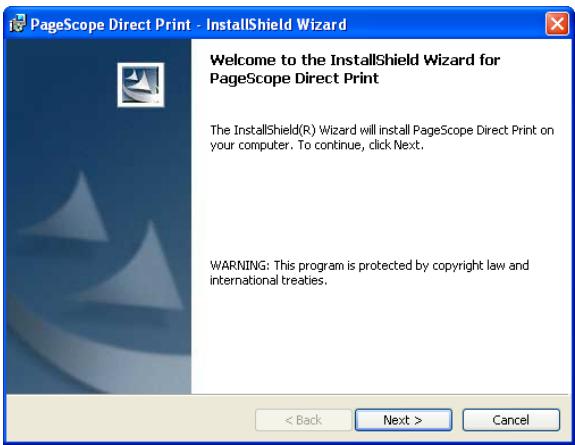
3 Click the [Next] button.
The License Agreement dialog box appears.
![KONICA MINOLTA BIZHUB C10P - Click the [Next] button. - 1](/content/2025/01/139621/images/60fcdb2a4f2a5a2e17a4aa165bd4273f0ba0d79f92efb55586d88d07dd8fb924.jpg)
4 Read the end user license agreement, and then select "I accept the terms in the license agreement".
5 Click the [Next] button.
A dialog box appears, allowing you to select the folder where the file or folder is to be copied to.
![KONICA MINOLTA BIZHUB C10P - Click the [Next] button. - 2](/content/2025/01/139621/images/28ea9144e533fd5f21d1ea4e3e1e49c967b9ba3a378e0f7e72df9c25cbec1a3d.jpg)
6 To install the application into a folder other than the one indicated, click the [Change] button, and then specify the folder where you wish to install the application.
7 Click the [Next] button.
The following dialog box appears.
![KONICA MINOLTA BIZHUB C10P - Click the [Next] button. - 1](/content/2025/01/139621/images/9a8d318261c9d14983f61f6db48a4a3c27d5ccc882be901b8db9822cd8fcefac.jpg)
8 Click the [Install] button.
The installation begins.
Once the installation is completed, the following dialog box appears.
![KONICA MINOLTA BIZHUB C10P - Click the [Install] button. - 1](/content/2025/01/139621/images/b1c37e526c276c8ff940bb9060200027c032a4f89d54d26d3bb826bfcea2e9ca.jpg)
9 Click the [Initialize] button.
The compatible printers on the network are detected and appear in the Add Printer dialog box.
![KONICA MINOLTA BIZHUB C10P - Click the [Initialize] button. - 1](/content/2025/01/139621/images/2e7d4f7e5a5bfb6e79fc7d938faaf6a4e8c2ad94ee0054764c6471d380664833.jpg)
![KONICA MINOLTA BIZHUB C10P - Click the [Initialize] button. - 2](/content/2025/01/139621/images/ccebac809e2ac32a4672cbdc006cc1745a242d01cc0e8496af521d0bb0c4c481.jpg)
Note
If no compatible printers can be found on the network, only "Manual Setting" appears in the list. In addition, if the enhanced security function has been set from the printer, the printer cannot be detected and only "Manual Setting" appears.
In this case, click the [Cancel] button to quit initializing. This completes the installation, even though the [Cancel] button was clicked. After starting up PageScope Direct Print, specify the range to search for printers or manually register printers. For details, refer to "Adding a Printer" on page 4-1.
10 Select the printer that you wish to use.
- If multiple printers are listed, select the printer to be used as the default printer.
11 Click the [Add] button.
The Printer Setting dialog box appears.
![KONICA MINOLTA BIZHUB C10P - Click the [Add] button. - 1](/content/2025/01/139621/images/98ba580dd06b37c4bcb2863e04a038505d38fc9d7746958515486c3e33bccc75.jpg)
12 Specify the appropriate printer settings.
On the "Option" tab, specify the option configuration for the printer.
For details on the various settings, refer to "Adding a Printer" on page 4-1.
The printer settings can also be changed after it is registered. For details, refer to "Changing Printer Settings" on page 4-9.
13 Click the [OK] button.
A message appears, indicating that the initial setup is completed.
![KONICA MINOLTA BIZHUB C10P - Click the [OK] button. - 1](/content/2025/01/139621/images/4fa83679f9eff0c7663ab9b7d610471bdd2869c300a1250a9732bad3c3dde66b.jpg)
14 Click the [OK] button.
This completes the installation of PageScope Direct Print and its initial setup.
![KONICA MINOLTA BIZHUB C10P - Click the [OK] button. - 1](/content/2025/01/139621/images/893fe95e79f6b126a6e6557176d7765f8c047c9860a2eaf28796cdbe29508ea8.jpg)
Note
After the message indicating the completion of the initial setup appeared, a message may appear, recommending that the computer be restarted. If this message appears, follow the on-screen instructions to restart Windows.
2.2 Uninstalling
Uninstall PageScope Direct Print by using "Add or Remove Programs" ("Add/Remove Programs" with Windows Me/2000).

Note
Before uninstalling, quit the PageScope Direct Print application.
Operating procedure
1 With Windows XP, click "Control Panel" in the "Start" menu, and then double-click "Add or Remove Programs".
With Windows Me/2000, point to "Settings" in the "Start" menu, click "Control Panel", and then double-click "Add/Remove Programs".

Add or
Remove
Programs
2 From the "Currently installed programs" list, select "PageScope Direct Print".
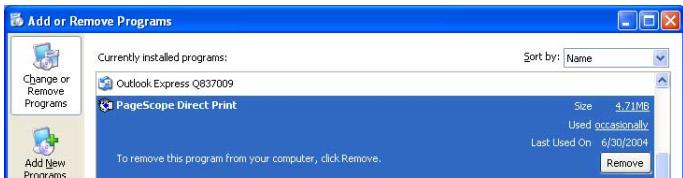
3 Click the [Remove] button. (With Windows Me, click the [Add/Remove] button.)
The following confirmation message appears.
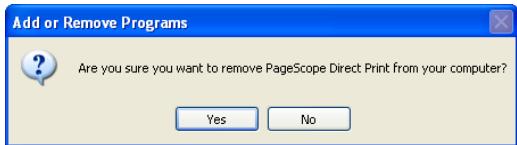
4 Click the [Yes] button.
PageScope Direct Print is uninstalled.
3 Starting PageScope Direct Print
PageScope Direct Print can be started using either the "Start" menu or the application icon on the desktop.
3.1 Using the "Start" Menu
Operating procedure
In the Windows "Start" menu, point to "All Programs" ("Programs" with Windows Me/2000), "KONICA MINOLTA", then "PageScope Direct Print", and then click "PageScope Direct Print".
The main window for PageScope Direct Print appears.
3.2 Using the Application Icon on the Desktop
Operating procedure
Double-click the "PageScope Direct Print" icon on the desktop.
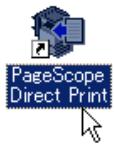
The main window for PageScope Direct Print appears.
3.3 Main Window
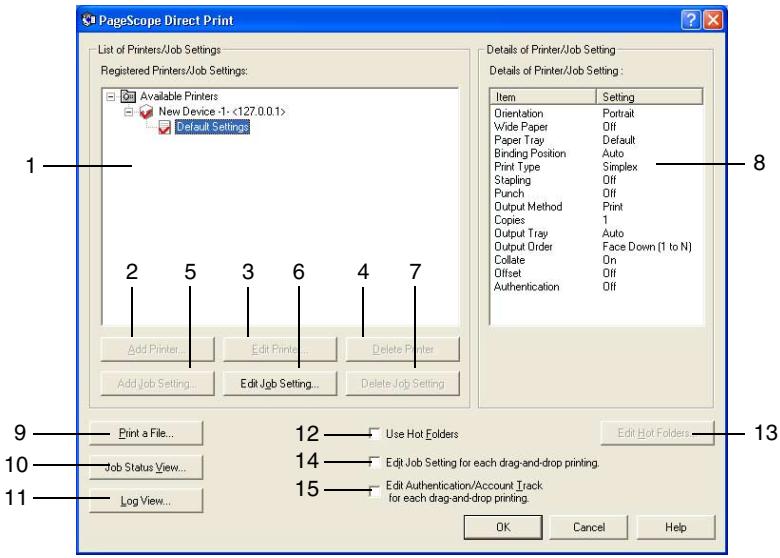
| No. | Element Name | Description |
| 1 | "Registered Printers/Job Settings" list | Displays the list of registered printers and job settings in a tree structure. Click "+" to display the names of job settings programmed for the printer; click "-" to close the tree structure. Right-click the printer or job setting to display a menu containing commands for changing or deleting the settings. |
| 2 | [Add Printer] button | Select "Available Printers" in the "Registered Printers/Job Settings" list, and then click this button to add a printer. For details, refer to "Adding a Printer" on page 4-1. |
| 3 | [Edit Printer] button | Select a printer in the "Registered Printers/Job Settings" list, and then click this button to change the settings for a registered printer. For details, refer to "Changing Printer Settings" on page 4-9. |
| 4 | [Delete Printer] button | Select a printer in the "Registered Printers/Job Settings" list, and then click this button to delete a registered printer. For details, refer to "Deleting a Printer" on page 4-9. |
| 5 | [Add Job Setting] button | Select a printer in the “Registered Printers/Job Settings” list, and then click this button to add a job setting for a registered printer.For details, refer to “Adding a Job Setting” on page 5-1. |
| 6 | [Edit Job Setting] button | Select a job setting in the “Registered Printers/Job Settings” list, and then click this button to change the print settings for a programmed job setting.For details, refer to “Changing a Job Setting” on page 5-3. |
| 7 | [Delete Job Setting] button | Select a job setting in the “Registered Printers/Job Settings” list, and then click this button to delete a programmed job setting.For details, refer to “Deleting a Job Setting” on page 5-4. |
| 8 | “Details of Printers/Job Setting” box | This box displays the print settings for the job setting that is selected in the “Registered Printers/Job Settings” list. |
| 9 | [Print a File] button | Click this button to specify the file to be printed from the main window.For details, refer to “Specifying a File From the Main Window” on page 6-5. |
| 10 | [Job Status View] button | Click this button to view the printing status.For details, refer to “Checking the Printing Status” on page 9-1. |
| 11 | [Log View] button | Click this button to view the log of files that have been printed.For details, refer to “Viewing the Print Log” on page 9-3. |
| 12 | “Use Hot Folders” check box | If this check box is selected, hot folders (folders monitored for printing) can be used.For details, refer to “Using Hot Folders” on page 6-6. |
| 13 | [Edit Hot Folders] button | Click this button to specify the settings for the hot folders.For details, refer to “Setting up hot folders” on page 6-6. |
| 14 | “Edit Job Setting for each drag-and-drop printing.” check box | If this check box is selected, a dialog box for changing the print settings of the job setting appears each time printing is performed by dragging a file to the appropriate icon on the desktop or by using the shortcut menu (displayed by right-clicking).For details, refer to “Administrators” on page 7-1. |
| 15 | “Edit Authentication/Account Track for each drag-and-drop printing.” check box | If this check box is selected, a dialog box for authentication appears each time printing is performed by dragging a file to the appropriate icon on the desktop or by using the shortcut menu (displayed by right-clicking).For details, refer to “General Users” on page 7-2. |
4 Specifying Printer Settings
4.1 Adding a Printer
A printer can be added to the "Registered Printers/Job Settings" list in the main window. With PageScope Direct Print, multiple printers can be registered.
In addition, printers can be added manually if they could not be detected when PageScope Direct Print was installed.

Note
Check that the printer to be used is connected to a network, and then make sure that the printer is turned on.
Operating procedure
1 Start up PageScope Direct Print.
The main window appears.

··
Note
If no printer could be detected when PageScope Direct Print is installed, the dialog box shown in step 3 appears. Either perform the operation described in "Specifying printer search parameters" on page 4-8, or skip to step 4.
2 Select "Available Printers" in the "Registered Printers/Job Settings" list.
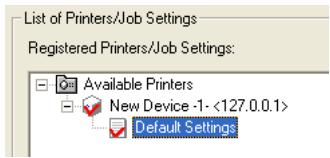
3 Click the [Add Printer] button.
The compatible printers on the network are detected and appear in the Add Printer dialog box.
![KONICA MINOLTA BIZHUB C10P - Click the [Add Printer] button. - 1](/content/2025/01/139621/images/88c600f3e39e3c91cbaa730323e158a20c61937471f843efd5ef19e529b38bb7.jpg)
- The Add Printer dialog box can also be displayed by right-clicking, then selecting "Add Printer" in the menu that appeared.
![KONICA MINOLTA BIZHUB C10P - Click the [Add Printer] button. - 2](/content/2025/01/139621/images/a7af923c734056dfad7cccac3d0a597e0d9d899f94da280cab71b5a1ab1965c9.jpg)
Note
Printers cannot be detected if their security functions have been set. In this case, since only "Manual Setting" appears, specify manual settings in steps 4 and 5.

Memo
Printers that have already been registered do not appear in the list.
If no printer is listed, specify the search settings, and then search again. For details, refer to "Specifying printer search parameters" on page 4-8.
4 Select the printer to be used, and then click the [Add] button. If the listed printers cannot be used or to specify manual settings, select "Manual Setting", and then click the [Add] button.
The Printer Setting dialog box appears.
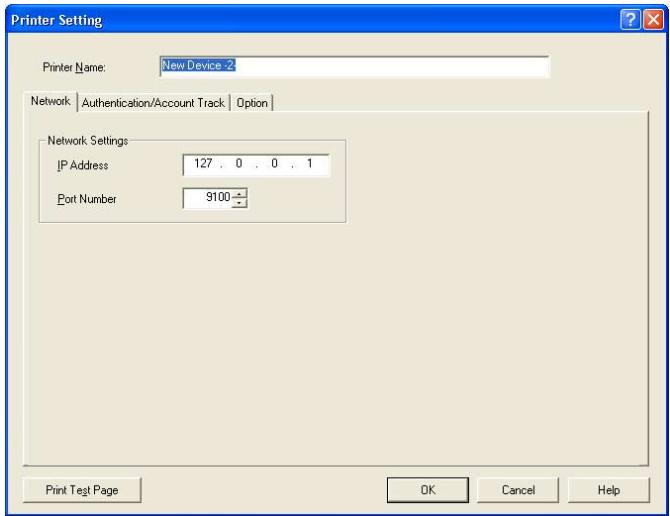
5 Specify the printer name and the various settings on the "Network", "Authentication/Account Track", and "Option" tabs, and then click the [OK] button.
In the "Printer Name" box, type in the name of the printer.
To print a test page, click the [Print Test Page] button.
4.1.1 "Network" tab
IP Address
For a printer that was detected, the IP address of the printer appears.
For a manual setting, type in the IP address of the printer.
Check with the network administrator for the IP address of the printer.
Port Number
Type in the port number for the printer.
4.1.2 "Authentication/Account Track" tab
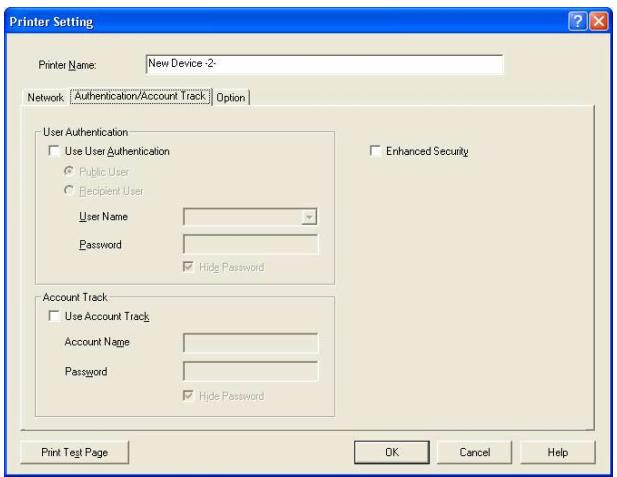

Note
These settings are available only if the user authentication or account track settings have been set from the printer.
"Use User Authentication" check box
Select this check to use user authentication, and then select either "Public User" or "Recipient User".
Public User
Select this setting to specify no user name for sending print data to the printer. A user name and password do not need to be specified.
Recipient User
Select this setting to specify a user name for sending print data to the printer. A user name and password must be specified.
UserID
When "Recipient User" is selected, type in the user name (between 1 and 64 characters). If the name of the user currently logged into the computer is to be specified, the user name can be selected from the drop-down list.
Password
When "Recipient User" is selected, type in the password (no more than 64 alphanumeric characters) for the specified user name.

Note
If the "Enhanced Security" check box has been selected, the password cannot be typed in.
"Hide Password" check box
Select this check box to hide the password typed in the dialog box.
"Use Account Track" check box
Select this check box to use account track, and then type the account name and password in the "Account Name" and "Password" boxes.
Account Name
Type in the account name (no more than 8 alphanumeric characters) used for sending print data to the printer.
Password
Type in the password (no more than 8 alphanumeric characters) for the entered account name.

Note
If the "Enhanced Security" check box has been selected, the password cannot be typed in.
"Hide Password" check box
Select this check box to hide the password typed in the dialog box.
"Enhanced Security" check box
Select this check box if the enhanced security function has been specified from the printer.
If both the printer and PageScope Direct Print are not set to use the enhanced security function, the enhanced security function cannot be used. For details on specifying settings from the printer, contact the printer's administrator.

Note
The following cannot be used when the enhanced security function is used.
[Gather Option Information] button on the "Option" tab
Automatic detection of printers (Manually search for printers.)
Password setting under "User Authentication"
Password setting under "Account Track"
Password setting in the Secure Print Settings dialog box
4.1.3 “Option” tab
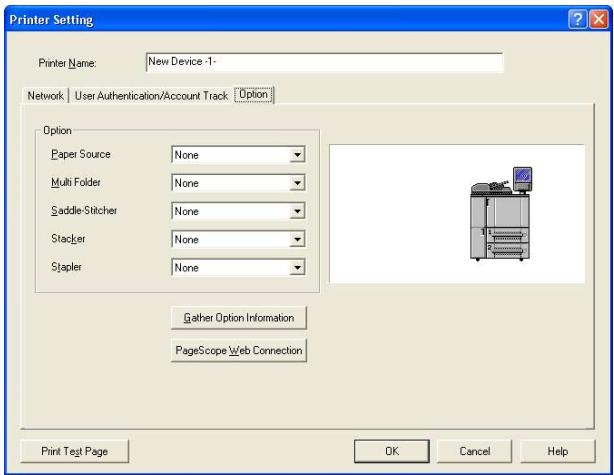
Option
Specify the appropriate settings according to the option configuration of the printer being used.
[Gather Option Information] button
Click this button to gather option information from the printer and the specify the appropriate settings.
![KONICA MINOLTA BIZHUB C10P - [Gather Option Information] button - 1](/content/2025/01/139621/images/d961318440653c94ebad8b3c93ebd04ca959fb69536e52efd09702495e928a6b.jpg)
Note
This button is not available if the "Enhanced Security" check box has been selected.
[PageScope Web Connection] button
Click this button to display the PageScope Web Connection page for the printer in order to specify the printer settings.
4.1.4 Specifying printer search parameters
The range for searching for a printer on a network can be specified.
Operating procedure
1 In the Add Printer dialog box (refer to "Adding a Printer" on page 4-1), click the [Search Settings] button.
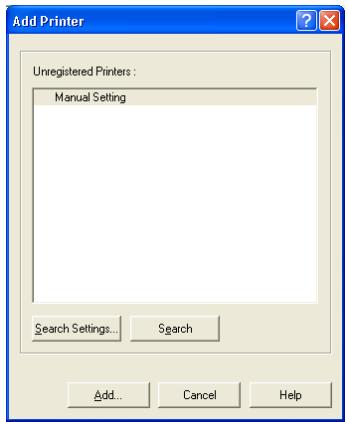
The Printer Search Settings dialog box appears.
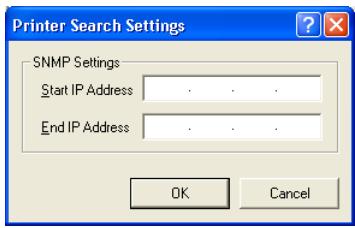
2 In the "Start IP Address" and "End IP Address" boxes, type in the corresponding IP addresses to specify the range on the network to search for the printer.
3 Click the [OK] button.
The Add Printer dialog box is displayed again.
4 Click the [Search] button to search the specified range.
Compatible printers are searched for, and the search results appear in the "Unregistered Printers" list.
4.2 Changing Printer Settings
The settings for a registered printer can be changed.
Operating procedure
1 From the "Registered Printers/Job Settings" list in the main window, select the printer whose settings you wish to change.
2 Click the [Edit Printer] button. The Printer Setting dialog box appears.
The Edit Printer dialog box can also be displayed by right-clicking the printer, then selecting "Edit Printer" in the menu that appeared.
3 Change the printer settings, and then click the [OK] button.
For details on the various settings, refer to "Adding a Printer" on page 4-1.
4.3 Deleting a Printer
Registered printers can be deleted.
Operating procedure
1 From the "Registered Printers/Job Settings" list in the main window, select the printer that you wish to delete.
2 Click the [Delete Printer] button.
The confirmation message dialog can also be displayed by right-clicking the printer, then selecting "Delete Printer" in the menu that appeared.
- When deleting a printer registered with a hot folder, the following confirmation message appears. Click the [OK] button.
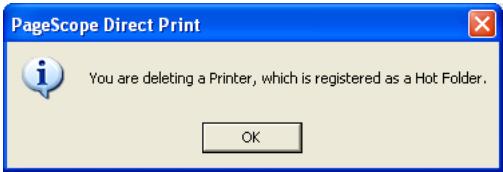
3 In the confirmation message dialog box, click the [OK] button.
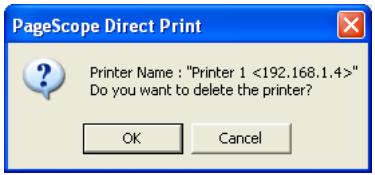
The printer is deleted from the "Registered Printers/Job Settings" list.
5 Programming Job Settings
Job settings, which consist of specified print settings, can be programmed for each printer.

Note
The print settings available for job settings differ depending on the printer being used.
5.1 Adding a Job Setting
Operating procedure
1 From the "Registered Printers/Job Settings" list in the main window, select the printer that you wish to create a job setting for.
2 Click the [Add Job Setting] button. The Print Settings dialog box appears.
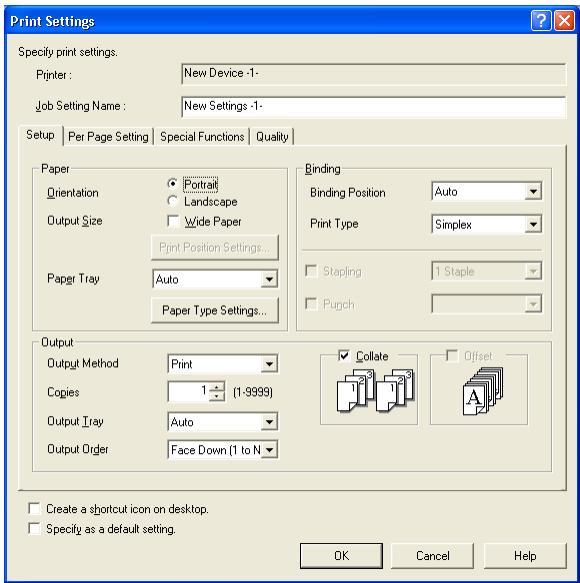
The Print Settings dialog box can also be displayed by right-clicking the printer, then selecting "Add Job Setting" in the menu that appeared.
3 In the "Job Setting Name" box at the top of the dialog box, type in the name of the job setting.
4 Specify the appropriate print settings for the job setting. For details on the various settings, click the [Help] button in the lower-right corner of the dialog box, and then refer to the help information.
To create a desktop shortcut for the current job setting, select the "Create a shortcut icon on desktop." check box at the bottom of the dialog box.
To specify this job setting as the default settings, select the "Specify as a default setting." check box at the bottom of the dialog box. Default settings are indicated with a red check mark ( ).
5 After the desired settings are specified, click the [OK] button.
5.2 Changing a Job Setting
The settings for a programmed job setting can be changed.

Note
General users cannot change the job settings of other users.
Operating procedure
1 From the "Registered Printers/Job Settings" list in the main window, select the job setting whose print settings you wish to change.
2 Click the [Edit Job Setting] button. The Print Settings dialog box appears.
The Print Settings dialog box can also be displayed by right-clicking the job setting, then selecting "Edit Job Setting" in the menu that appeared, or by double-clicking the job setting.
3 Change the print settings for the job setting, and then click the [OK] button.
For details on the various settings, click the [Help] button in the lower-right corner of the dialog box, and then refer to the help information.
5.3 Deleting a Job Setting
Programmed job settings can be deleted.

Note
General users cannot delete the job settings of other users.
Operating procedure
1 From the "Registered Printers/Job Settings" list in the main window, select the job setting that you wish to delete.
2 Click the [Delete Job Setting] button.
The job setting can also be deleted by right-clicking the job setting, then selecting "Delete Job Setting".
A confirmation message dialog box appears.
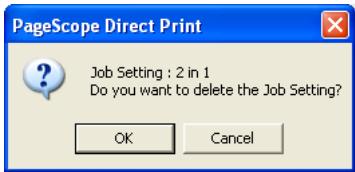
3 Click the [OK] button.
The job setting is deleted from the "Registered Printers/Job Settings" list.
6 Printing
6.1 Using the Appropriate Icon on the Desktop
A file can be printed by dragging it to a printer icon (or a shortcut icon for a job setting) on the desktop.
Operating procedure
1 With PageScope Direct Print closed, select the file that you wish to print.
2 Drag the file to the printer icon (or the shortcut icon for a job setting) on the desktop.
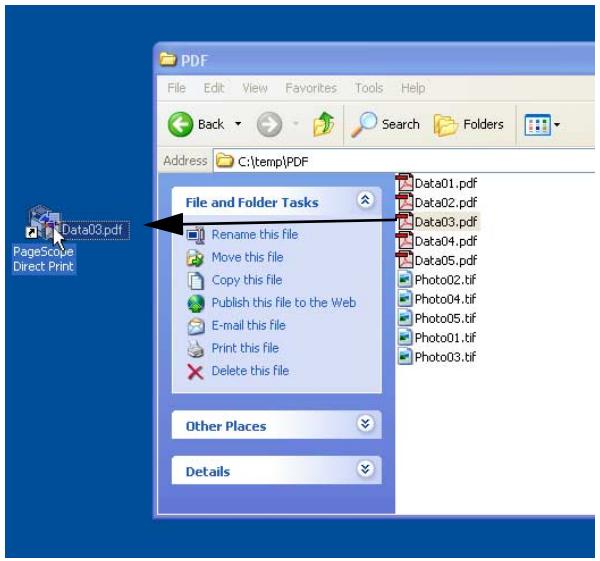
If the file is dragged to a printer icon on the desktop, the file is printed with the default print settings (indicated by () ) for PageScope Direct Print.
If the file is dragged to a shortcut icon for a job setting, the file is printed with the print settings of the selected job setting.

Memo
For details on creating a desktop shortcut for a job setting, refer to step 4 of "Adding a Job Setting" on page 5-1.
If the "Edit Job Setting for each drag-and-drop printing." check box or "Edit Authentication/Account Track for each drag-and-drop printing." check box is selected, a dialog box appears so that the settings can be specified when printing is performed. For details, refer to "7 Security Functions".
6.2 Using the Shortcut Menu (Displayed by Right-Clicking)
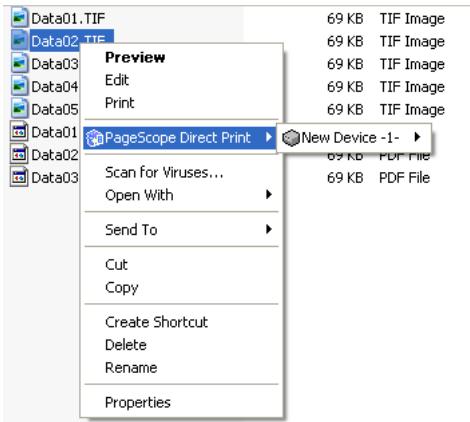
In Windows, a file can be printed by right-clicking it, then selecting "PageScope Direct Print" in the shortcut menu that appeared.
Operating procedure
1 With PageScope Direct Print closed, select the file that you wish to print.
2 Right-click the file, and then select "PageScope Direct Print" in the shortcut menu that appeared.

Memo
If the "Edit Job Setting for each drag-and-drop printing." check box or "Edit Authentication/Account Track for each drag-and-drop printing." check box is selected, a dialog box appears so that the settings can be specified when printing is performed. For details, refer to "7 Security Functions".
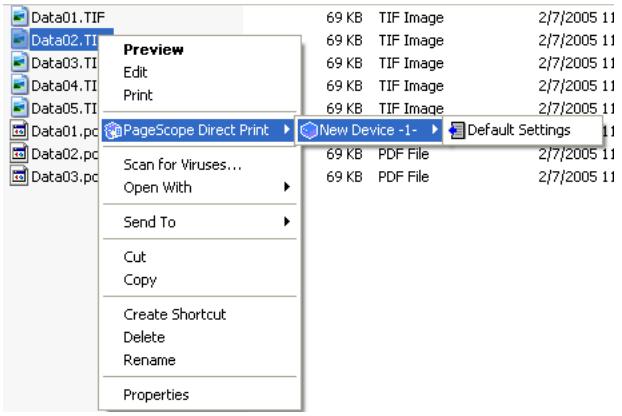
3 Select the printer that you wish to use to print the file.
4 Specifies the job setting.
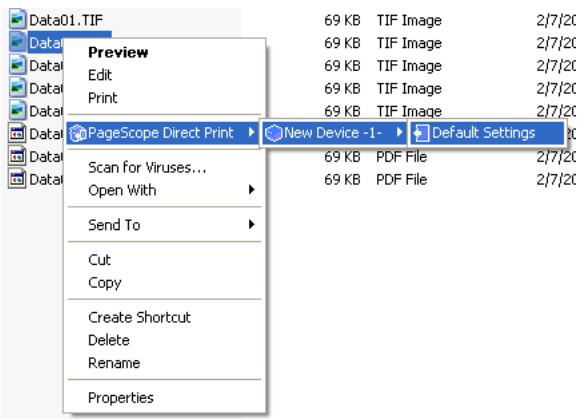
The file is printed with the selected job setting.
6.3 Specifying a File From the Main Window
A file can be printed by selecting a job setting in the main window (p. 3-2), then selecting the file to be printed.
Operating procedure
1 From the "Registered Printers/Job Settings" list in the main window, select the job setting that you wish to use.
2 In the main window, click the [Print a File] button. The Print a File dialog box appears.
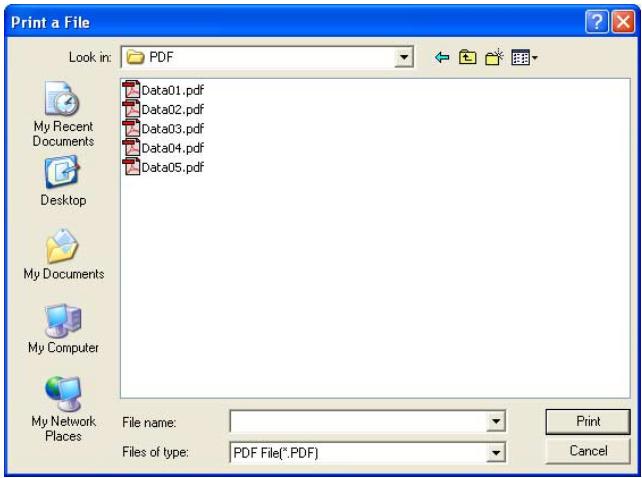
The Print a File dialog box can also be displayed by right-clicking the job setting, then selecting "Print a File" in the menu that appeared.
3 From the "Files of type" drop-down list, select the type of file to be printed (PDF, TIFF, PS, PCL or TEXT file).
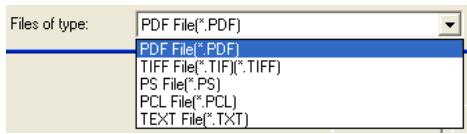
4 Select the file to be printed.
- Multiple files can be selected while the [Shift] or [Ctrl] keys are held down.
5 Click the [Print] button.
The selected file is printed.
6.4 Using Hot Folders
A file can automatically be printed by copying it to a hot folder (folder monitored for printing) that has been set up in advance.
If the folder is set to be shared, printing is possible from other computers on the network.

Note
Shared folders on a computer running Windows XP cannot be accessed by computers running Mac OS 8 or 9.
6.4.1 Setting up hot folders
In order to print using hot folders, the hot folders must first be set up.
Operating procedure
1 In the main window, select the "Use Hot Folders" check box.
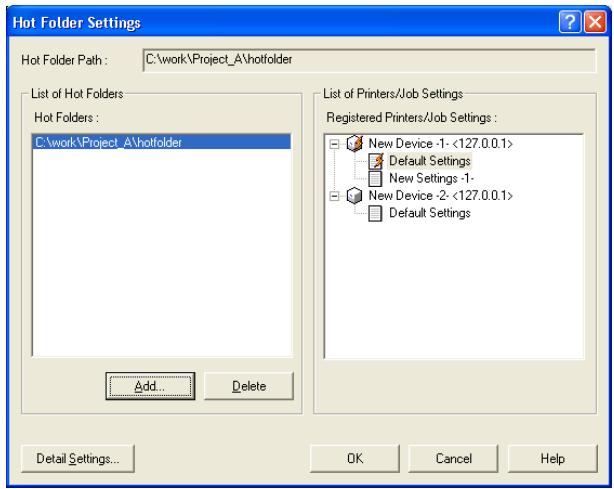
2 Click the [Edit Hot Folders] button beside the check box. The Hot Folder Settings dialog box appears.
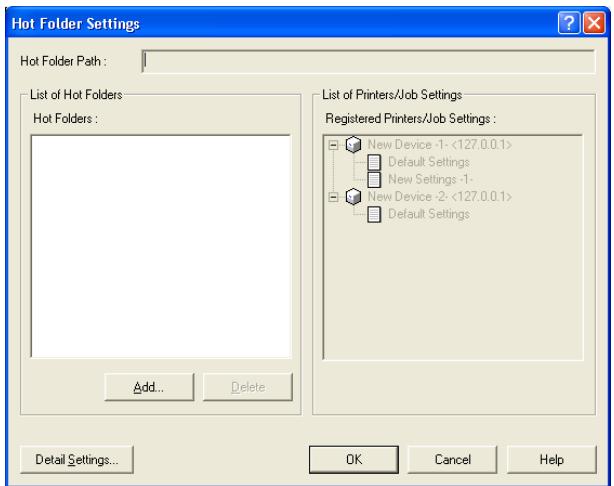
If a hot folder has already been set up, it is listed in the "List of Hot Folders" list. The registered printers and their job settings appear in the "Registered Printers/Job Settings" list.
3 To set up a new hot folder, click the [Add] button. The Browse For Folder dialog box appears.
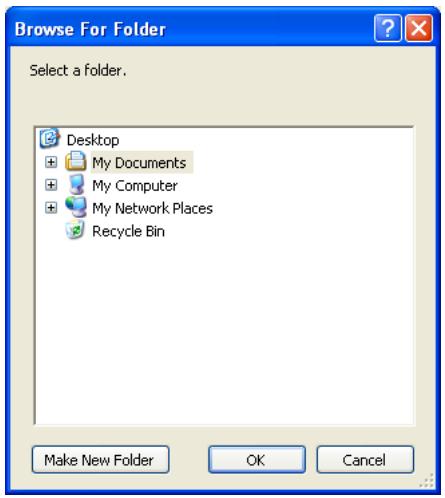
4 Select the folder to be used as a hot folder.
Click "+" to open a folder, or click "-" to close the folder.
To create a new folder, select the folder that will contain the new folder, and then click the [Make New Folder] button. When the new folder is created, type in the name of the folder.
5 Click the [OK] button.
The selected folder is added to the "List of Hot Folders" list in the Hot Folder Settings dialog box.
6 Select a hot folder in the "List of Hot Folders" list, and then select the printer and job setting from the "Registered Printers/Job Settings" list to be used with the selected hot folder.
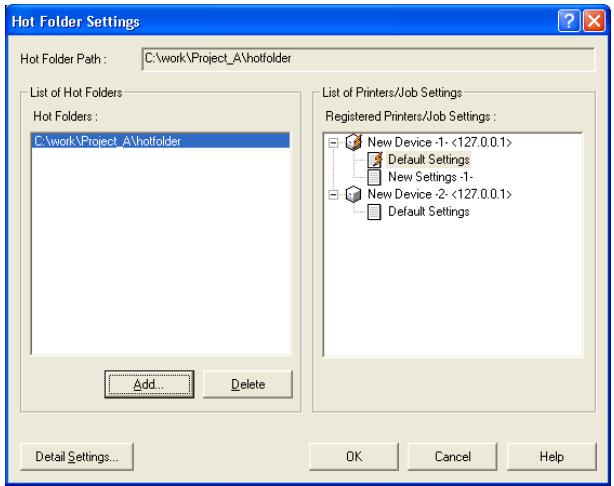
- Be sure that only one job setting for a printer is assigned to a single hot folder. To use different job settings, create multiple hot folders and use the hot folder corresponding to the desired job setting.
7 Click the [OK] button.
This completes the setup of the hot folders.
Using multiple hot folders
Repeat steps 3 through 6 to create multiple hot folders, and then assign the desired printer and job setting to each hot folder.
Cancelling a hot folder setup
In the Hot Folder Settings dialog box that appears in step 2, select the folder whose hot folder setup is to be cancelled, and then click the [Delete] button. The hot folder setup for the selected folder is cancelled.

Note
When the hot folder setup of a folder is cancelled, the folder itself is not deleted.
6.4.2 Specifying detailed hot folder settings
Detailed settings for the hot folder can be specified.
Operating procedure
1 In the Hot Folder Settings dialog box (refer to "Setting up hot folders" on page 6-6), click the [Detail Settings] button.
The Detail Settings of Hot Folders dialog box appears.
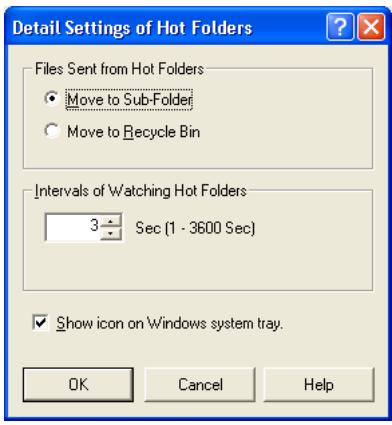
2 Specify the desired settings under "Files Sent from Hot Folders" and "Intervals of Watching Hot Folders" and for the "Show icon on Windows system tray." check box.
Files Sent from Hot Folders
Select whether to delete files sent to the printer from a hot folder or to move the files to a subfolder.
Intervals of Watching Hot Folders
Specify the interval at which the hot folders are monitored.
"Show icon on Windows system tray." check box
If this check box is selected, the icon ( ) appears in the system tray.
3 Click the [OK] button.
The Hot Folder Settings dialog box appears again.
6.4.3 Hot folders monitoring icon
If the "Show icon on Windows system tray." check box in the Detail
Settings of Hot Folders dialog box is selected, the icon ( ) appears in the system tray.
Right-click this icon to display a menu that contains the following commands.
- Launch PageScope Direct Print
Select this command to display the main window.
- Stop Watching Hot Folders
Select this command to stop monitoring the hot folders.
Show Icon at Watching Hot Folders
If there is no check mark beside this command, the icon does not appear in the system tray.
about
Select this command to display the version information for PageScope Direct Print.
6.4.4 Printing using a hot folder
Operating procedure
1 Select the file that you wish to print.
2 Copy the file into a hot folder that has previously been set up.
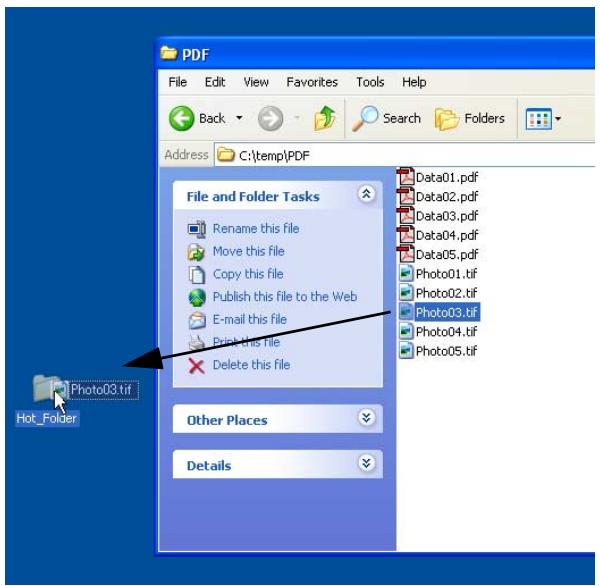
When the file is copied into the hot folder, the print job is automatically sent to the printer and the data is printed. Before printing, no messages or dialog boxes appear.
If "Move to Sub-Folder" was selected in the Detail Settings of Hot Folders dialog box, a subfolder named "Sent Data" is created in the hot folder when a print job is sent to the printer. Files that have been sent to the printer are moved to this subfolder.

Note
If "Move to Recycle Bin" was selected in the Detail Settings of Hot Folders dialog box, printed files are automatically deleted from the hot folder.
7 Security Functions
The settings and print logs can be protected for each user logged onto Windows.
Users with administrator privileges can view or edit the settings of all users. However, limitations are applied to general users specifying or editing the settings of other users.
Users belonging to the Administrators group and having administrator privileges are called "administrators", and all other users are called "general users".
7.1 Common to Administrators and General Users
Both users with administrator privileges and general user can perform the following operations.
- View, use and change device settings (settings on the "Authentication/ Account Track" tab) for other users
- Delete print logs for all users
7.2 Administrators
Users with administrator privileges can perform the following operations.
- View, use and change device settings (settings on the "Network" and "Option" tabs) for all users
- View, use and change job settings for all users
- View, use and change hot folder settings for all users
- View and perform (delete) jobs of all users
- View print logs for all users
7.3 General Users
General users can perform the following operations.
- View and use administrator device settings (settings on the "Network" and "Option" tabs)
- View and use administrator job settings
- View and use administrator hot folder settings
- View, use and change their own device settings (settings on the "Network" and "Option" tabs)
- View, use and change their own job settings
- View, use and change their own hot folder settings
- View jobs of other users*
- View and perform (delete) their own jobs
- View print logs for other users*
View and save their own print log
General users cannot perform the following operations.
- Change device settings (settings on the "Network" and "Option" tabs) for other users
- Change job settings for other users
- Change hot folder settings for other users
- Perform (delete) jobs of other users
- Save print logs for other users
*General users can view the print status and print logs of other users; however, they cannot view the names of files in the jobs.
8 Additional Settings
8.1 Edit Job Setting for each printing
The application can be set so that a dialog box for changing the print settings of the job setting appears each time printing is performed by dragging a file to the appropriate icon on the desktop or by using the shortcut menu (displayed by right-clicking).
This is useful for checking or changing the job setting before printing.
Operating procedure
1 In the main window, select the "Edit Job Setting for each drag-and-drop printing." check box.
2 Click the [OK] button to quit the application.
3 Print by either dragging a file to the appropriate icon on the desktop or using the shortcut menu (displayed by right-clicking).
For details on these printing methods, refer to "Using the Appropriate Icon on the Desktop" on page 6-1 and "Using the Shortcut Menu (Displayed by Right-Clicking)" on page 6-3.
The Print Settings dialog box appears.
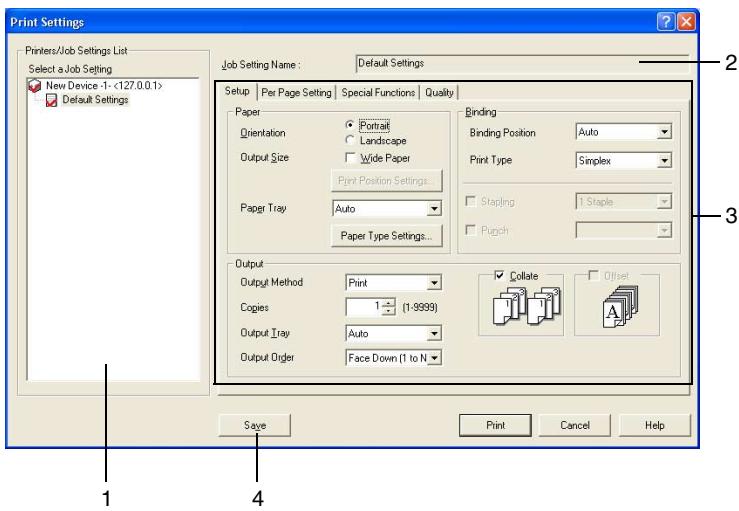
4 Select the desired job setting or change the print settings, and then click the [Print] button.
| No. | Element Name | Description |
| 1 | Printer/Job Setting List | Displays the list of registered printers and job settings in a tree structure. When the dialog box is displayed, the default printer/job setting is selected. From this list, a different printer or job setting can be selected. |
| 2 | Job Setting Name | Displays the name of the selected job setting. |
| 3 | Print settings | Displays the print settings for the selected job setting. The settings on the various tab can be changed. |
| 4 | [Save] button | Click this button to save the current job setting with the new print settings. |
The file is printed with the selected job setting.

Memo
If the "Edit Authentication/Account Track for each drag-and-drop printing." check box in the main window was selected, the Authentication/Account Track dialog box appears.
8.2 Edit Authentication/Account Track for each printing
The application can be set so that a dialog box for entering the user name or account name and their passwords appears each time printing is performed by dragging a file to the appropriate icon on the desktop or by using the shortcut menu (displayed by right-clicking).

Note
This setting is available only if the user authentication or account track settings have be set from the printer.
Operating procedure
1 In the main window, select the "Edit Authentication/Account Track for each drag-and-drop printing." check box.
2 Click the [OK] button to quit the application.
3 Print by either dragging a file to the appropriate icon on the desktop or using the shortcut menu (displayed by right-clicking).
For details on these printing methods, refer to "Using the Appropriate Icon on the Desktop" on page 6-1 and "Using the Shortcut Menu (Displayed by Right-Clicking)" on page 6-3.
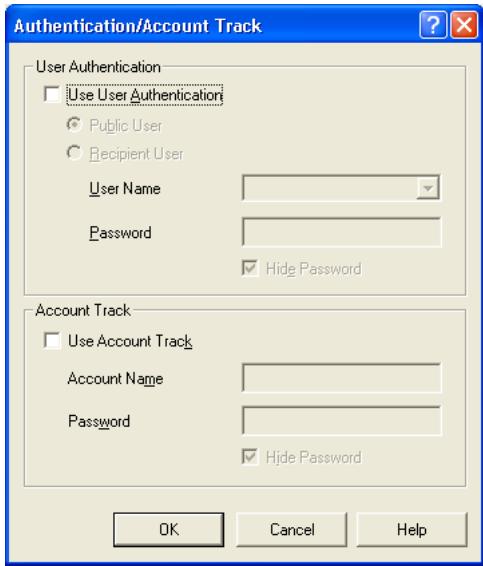
The Authentication/Account Track dialog box appears.

Memo
If the "Edit Job Setting for each drag-and-drop printing." check box was selected, this dialog box appears after the Print Settings dialog box is displayed.
4 To use user authentication, select the "Use User Authentication" check box, and then select either "Public User" or "Recipient User". If "Recipient User" is selected, type in the user name (between 1 and 64 characters) and the password (no more than 64 alphanumeric characters). To hide the password typed in the dialog box, select the "Hide Password" check box.

Note
If the "Enhanced Security" check box has been selected, the password cannot be typed in.
5 To use account track, select the "Use Account Track" check box, and then type the account name (no more than 8 alphanumeric characters) and password (no more than 8 alphanumeric characters) in the "Account Name" and "Password" boxes. To hide the password typed in the dialog box, select the "Hide Password" check box.

Note
If the "Enhanced Security" check box has been selected, the password cannot be typed in.
6 After the desired settings are specified, click the [OK] button.
The specified user authentication or account track information is set to the printer and the file is printed.
9 Checking the Printing Status and Print Log

Note
The printing status and the print log for the application can be checked. These may differ from the printing status and the print log for the printer.
General users cannot save the print logs of other users.
9.1 Checking the Printing Status
Operating procedure
In the main window, click the [Job Status View] button.
The Printing Status dialog box appears.
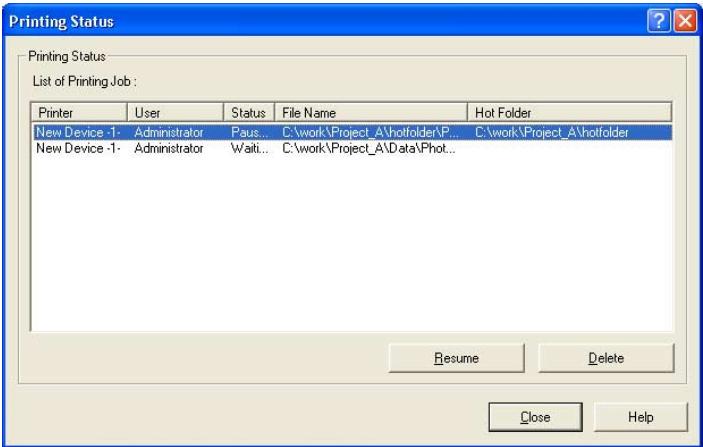
| Element | Description |
| Printer | Displays the name of the printer where the print job was sent. |
| User | Displays the name of the user who sent the print job. |
| Status | Displays the printing status (PRINTING, WAIT, PAUSED, or Error).When a file of a version incompatible with the printer is printed, “Error” is displayed. |
| File Name | Displays the name of the file being printed. General users cannot view the names of files printed by other users. |
| Hot Folder | Displays the path to the hot folder (only when a hot folder is used). |
| [Resume] button | To resume printing a file after printing was stopped (file with the “PAUSED” status), select the print job, and then click this button. |
| [Delete] button | To delete a file queued for printing, select the file, and then click this button. |
9.2 Viewing the Print Log
Operating procedure
In the main window, click the [Log View] button.
The List of Log dialog box appears.
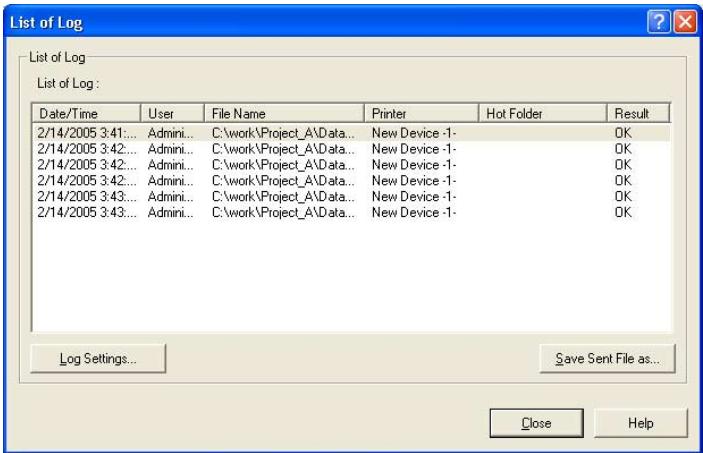
| Element | Description |
| Date/Time | Displays the date and time that the file was printed. |
| User | Displays the name of the user who sent the print job. |
| File Name | Displays the name of the printed file. General users cannot view the names of files printed by other users. |
| Printer | Displays the name of the printer where the file was sent. |
| Hot Folder | Displays the path to the hot folder (only when a hot folder is used). |
| Result | Displays the result of printing the file (OK, DELETED, or WARNING). When a file of a version that may not be printed correctly is printed, “Warning” is displayed. |
| [Log Settings] button | The maximum amount of log data that is saved can be set. For details, refer to “Specifying the log setting” on page 9-4. |
| [Save Sent File as] button | A print job previously sent to the printer can be retrieved and saved as a file. For details, refer to “Retrieving data” on page 9-5. |


Memo
The number of files displayed in the log differs depending on the size specified in the Log Settings dialog box. For details on specifying the log setting, refer to "Specifying the log setting" on page 9-4.
9.2.1 Specifying the log setting
The maximum amount of log data that is saved can be set.
Operating procedure
1 In the main window, click the [Log View] button.
The List of Log dialog box appears.
2 Click the [Log Settings] button.
The Log Settings dialog box appears.
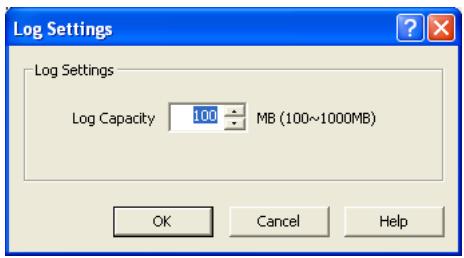
3 Specify the log capacity.
A setting between 100 and 1,000 MB can be specified, however, a capacity larger than the size of the computer's hard disk cannot be specified.
4 Click the [OK] button.
9.2.2 Retrieving data
A print job previously sent to the printer can be retrieved and saved as a file.
Operating procedure
1 In the main window, click the [Log View] button.
The List of Log dialog box appears.
2 Select the file whose data you wish to retrieve, and then click the [Save Sent File as] button.
The Save Sent File dialog box appears.
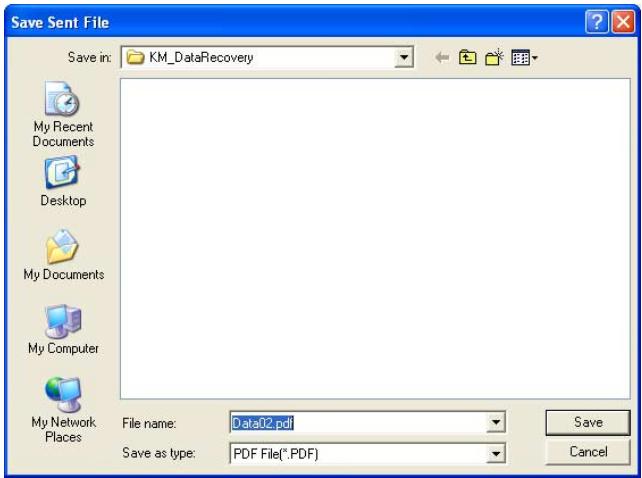
3 Select the folder where the data is to be saved and specify a file name, and then click the [Save] button.
10 Warning/Error Messages
The error messages that appear when printing with PageScope Direct Print are described below.
10.1 Messages Concerning PDF Versions
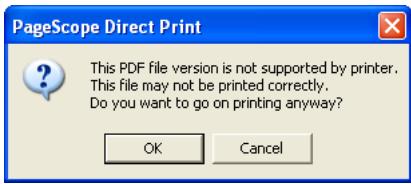
This message appears if the printer supports PDF ver. 1.3 files and you try to print a PDF ver. 1.4 file.

Memo
This message does not appear when printing is performed using a hot folder, however, "WARNING" will appear under "Result" in the List of Log dialog box.
For details on compatible PDF versions, refer to the support information for the printer being used.
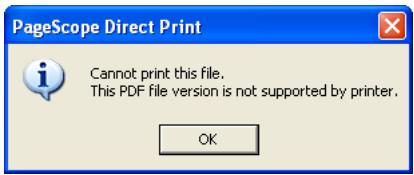
This message appears if you try to print a PDF file of a version that is not compatible with the selected printer.

Memo
This message does not appear when printing is performed using a hot folder, however, "Error" will appear under "Status" in the Printing Status dialog box.
For details on compatible PDF versions, refer to the support information for the printer being used.

KONICA MINOLTA
http://konicaminolta.com
- Direct Print Ver. 1.1
- Direct Print
- Contents
- Introduction
- Installing PageScope Direct Print
- Starting PageScope Direct Print
- Specifying Printer Settings
- Programming Job Settings
- Printing
- Security Functions
- Additional Settings
- Checking the Printing Status and Print Log
- Warning/Error Messages
- System Requirements
- Note
- Main Features
- Printing by dragging a file to the appropriate icon on the desktop
- Printing using the Windows shortcut menu (displayed by right-clicking)
- Automatic printing using a hot folder
- Registering multiple printers/job settings
- Editing print settings
- Specifying the authentication setting
- Security functions
- Copyright Information
- Trademark Acknowledgements
- Screen Images
- Notice
- Installing
- Operating procedure
- Click the [Next] button.
- Click the [Next] button.
- Click the [Install] button.
- Click the [Initialize] button.
- Select the printer that you wish to use.
- Click the [Add] button.
- Specify the appropriate printer settings.
- Click the [OK] button.
- Click the [OK] button.
- Uninstalling
- Using the "Start" Menu
- Using the Application Icon on the Desktop
- Main Window
- Adding a Printer
- Click the [Add Printer] button.
- Memo
- "Network" tab
- IP Address
- Port Number
- "Authentication/Account Track" tab
- "Use User Authentication" check box
- Public User
- Recipient User
- UserID
- Password
- "Hide Password" check box
- "Use Account Track" check box
- Account Name
- "Enhanced Security" check box
- “Option” tab
- Option
- [Gather Option Information] button
- [PageScope Web Connection] button
- Specifying printer search parameters
- Changing Printer Settings
- Deleting a Printer
- Adding a Job Setting
- Changing a Job Setting
- Deleting a Job Setting
- Using the Appropriate Icon on the Desktop
- Using the Shortcut Menu (Displayed by Right-Clicking)
- Select the printer that you wish to use to print the file.
- Specifies the job setting.
- Specifying a File From the Main Window
- Using Hot Folders
- Setting up hot folders
- Click the [OK] button.
- Using multiple hot folders
- Cancelling a hot folder setup
- Specifying detailed hot folder settings
- Hot folders monitoring icon
- Printing using a hot folder
- Common to Administrators and General Users
- Administrators
- General Users
- Edit Job Setting for each printing
- Edit Authentication/Account Track for each printing
- Checking the Printing Status
- Viewing the Print Log
- Specifying the log setting
- Retrieving data
- Messages Concerning PDF Versions
- KONICA MINOLTA
Brand : KONICA MINOLTA
Model : BIZHUB C10P
Category : Color printer